
How to organize a weekly menu and shopping list
A weekly menu is more useful when it fits the days you'll eat at home, the time you have and what's already in your pantry. There's no need to sort out every meal at once: you can start with dinners and expand later.
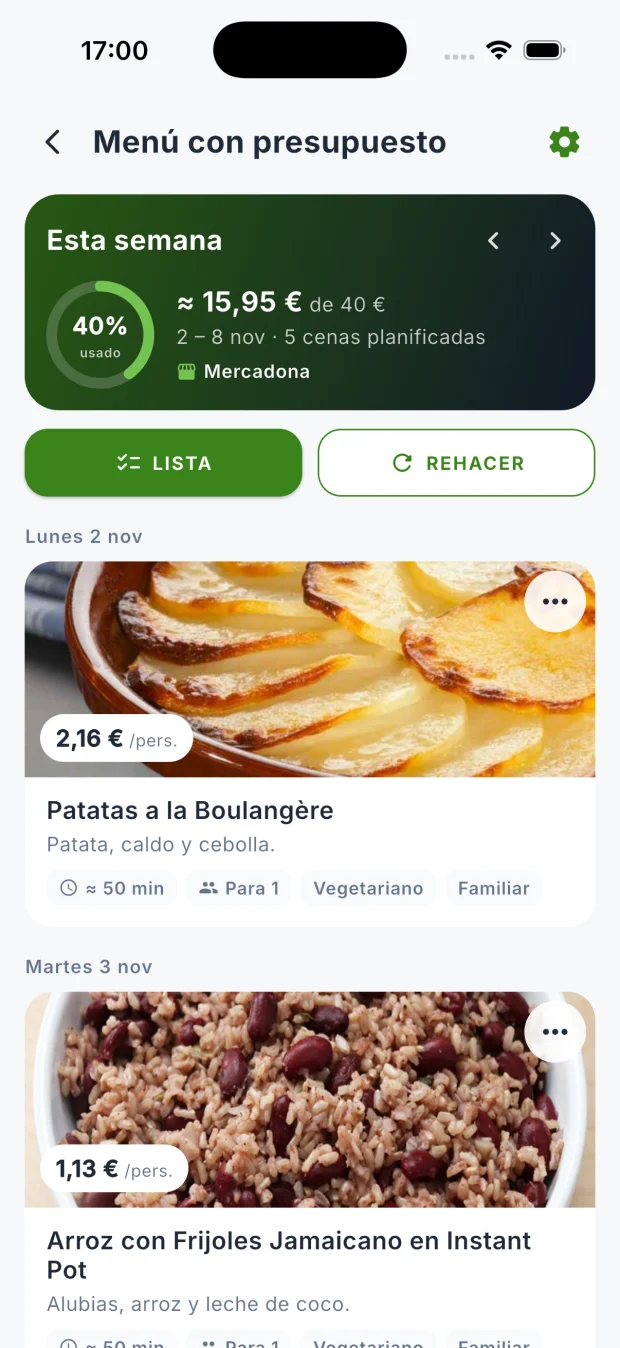
1. Decide which days and for how many people you cook
Before choosing recipes, note which meals you want to organize and how many people will be at home. If you're eating out on Wednesday, leave it free. If you prepare a meal for several people, note the servings so the shopping isn't calculated as if only one person were eating.
In DietaGo you can place your recipes in the planner, start from a seven-day template or prepare dinners with “Budget menu”. They are different ways to start; you don't need to use AI generation to have a plan.
2. Check the fridge and the pantry before you shop
Look at which ingredients you have and which you want to use first. Note approximate quantities and check the condition and storage of the food. An open bag of rice or a few vegetables can help you decide the next dishes without buying the same thing again.
You can keep DietaGo's pantry by hand, by voice or with the barcode. The AI fridge scanner is optional and uses coins: always check what it recognizes before saving it. When you generate the shopping from the plan, check what the list subtracts from the pantry.
3. Fit the recipes to your kitchen and your budget
Choose dishes you can prepare with your appliances and in the time available. There's little point planning an oven recipe if you don't have an oven, or a long preparation for a day when you get home late. Check ingredients and restrictions before accepting the menu.
“Budget menu” lets you choose supermarket, weekly amount, people, days and appliances in three steps. “Quick menu” suggests a week in one tap; if you start without saved preferences, it takes the diet and allergies from your profile. You can adjust it afterward. Both options select recipes from the catalog, are free and spend no coins.
The cost you see corresponds to the quantities used in the dishes and is an estimate. For example, using part of a package doesn't mean you can buy just that part. Check packages, your store's prices and what you already have: the amount at the checkout may be different.
4. Turn the menu into a shopping list
Group the ingredients and check units and servings: two recipes with onion should help you work out how much you need in total. Also add the products that don't come from a recipe, such as the ones you usually have for breakfast or around the house.
In the budget menu, open “List” to see the ingredients by aisle and tap “Save to my lists”. The weekly plan and the templates also let you get the shopping. Go over the list before heading to the supermarket and tick off what you buy.
5. Leave room to change your mind
The plan is a help, not an obligation. If your week changes, move a meal or swap a recipe. In the budget menu you can swap a dish or tap “Redo” to look for another combination; the variety depends on what fits your preferences.
After changing the menu, check the shopping too. If you had already saved a list, check its ingredients before saving another so you don't buy twice. At the end of the week, keep the recipes that worked well for you so you can use them again.
Try these features in DietaGo
No subscription. Everyday use is free; AI features use coins.